How to compare clothing colorways with a HEX color
Use VirtualTryOn's clothes color changer to preview a different shade on clothing already in a photo. Upload one image, choose a swatch or enter a six-digit HEX value, then generate a colorway. A HEX value guides a digital preview; it does not guarantee an exact fabric color, dye formula or print specification.
Compare a clothing colorway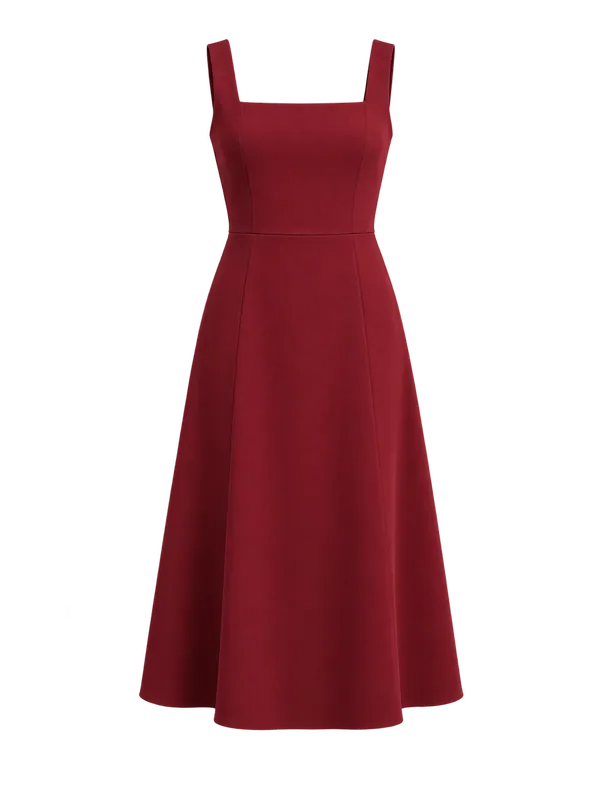 Original garment
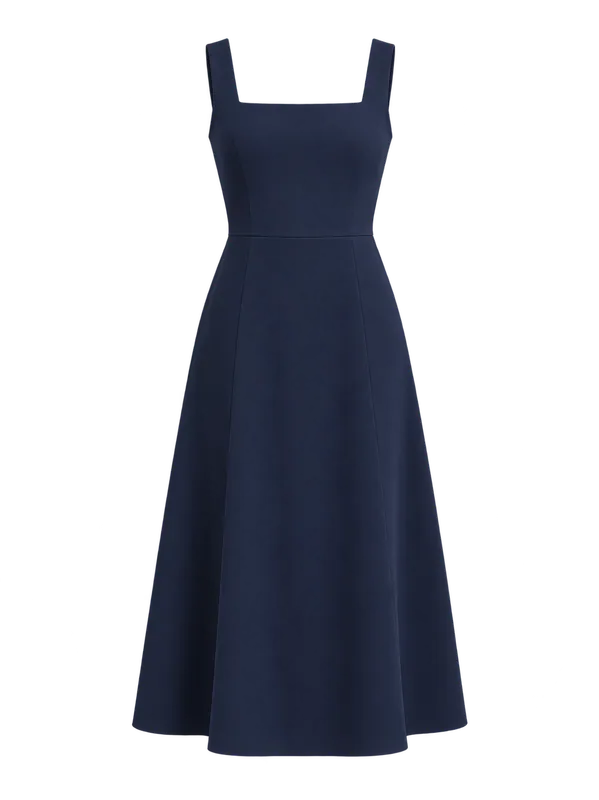 Generated color preview
Use the same original for every shade
Choose a product photo or a worn garment with clear edges and even lighting. A single visible garment is easier to interpret than overlapping layers or a multi-item collage. Upload a JPEG, PNG or WebP image up to 10 MB.
Return to the original image for each colorway instead of recoloring the previous generated result. Repeated edits can accumulate changes in texture and construction, making the comparison less useful.
Set a shade and review the result
Pick a swatch, adjust hue, saturation and brightness, or enter a HEX value such as #173F73. Use the shade name to describe the direction, for example midnight blue. Generate the preview, inspect it alongside the source and download useful results.
Check that the garment boundaries, folds, seams, face and background still make sense. For patterned or two-tone clothing, check which regions changed; do not assume each panel or print will remain intact. The public tool does not offer a manual masking brush.
Use physical samples for final color decisions
Image lighting, shadows, display settings and AI interpretation all affect the apparent color. A target HEX value describes a screen color, not how real fabric reflects light. The preview is useful for narrowing visual directions, not approving a production dye lot.
For customer-facing product imagery, use real photos of the available colorways and verify any generated representation. For manufacturing, use the supplier's physical swatches and agreed color standards. If you need a different garment rather than a different shade, use the clothes changer with two references.
Questions about this workflow
Do I need a second clothing image?
No. Recoloring needs one source photo and a target color. A clothing swap needs a person image plus a separate garment reference.
Can the output match a Pantone or fabric sample exactly?
No. The controls guide a visual simulation. The output is not a calibrated color proof, Pantone match or manufacturing specification.
Does each colorway use a credit?
Each finished generated image uses one credit or the eligible guest allowance. Selecting a stored studio example does not generate a new image or spend credits. Failed generations do not consume credits.
Try it with your own reference
Eligible guests can try one free image shared across the studio. Further use requires available credits. One-time credit packs are available without a subscription, and purchased credits never expire.
Compare a clothing colorwaySee current pricing and credits · Image privacy and retention